You can now identify birds by sound or photo — even without a Birdbuddy feeder — and log your sightings manually. Keep in mind that these features require manual uploads/recordings and do not process the content that gets sent to your Home feed as postcards or is displayed during the livestream. This feature is avaialble for our premium membersips.
Even if you don’t have a Birdbuddy feeder, you can still enjoy birdwatching and use the Birdbuddy app to its fullest! With our new feature, you can upload your own bird photos or record bird sounds to identify species in your surroundings. To access this feature without a feeder, you can create an account in our app and subscribe to the Bird ID Pass, available as a monthly plan for $3.99 or a yearly plan for It’s a great way to start discovering birds wherever you are!
Sound ID
Identify bird calls and songs you hear around you. Just hold still, avoid talking or making noise, and let the birds sing — we’ll do the rest.
How it works:
-
Tap the floating ➕ button in your Collection and select Sound ID.If it’s your first time, you’ll be asked to grant microphone and location permissions and download the sound recognition model.
- Press record and stay still for 10 seconds.
-
We’ll analyze the sound and show you a list of possible matches. Tap a result to view its profile, or tap the ➕ icon to save it to your Collection if this is a new species. For now, the sound recording itself is not saved.
Photo ID
Take or upload a bird photo to get instant identification and add it to your Collection.
How it works:
1. Tap the ➕ button in the Collection and select Photo ID, or use the “Not sure? Identify now!” link while logging a sighting. Grant camera, gallery, and location permissions if prompted.
2. Snap a photo (select Take photo) or choose one from your phone's gallery (click Select image) and send it to identification.
3. Tap a result to open the bird’s profile, or just tap ➕ to save it to your Collection if you want to save it to an exiting bird species profile or create a new one.
Where do these sightings go?
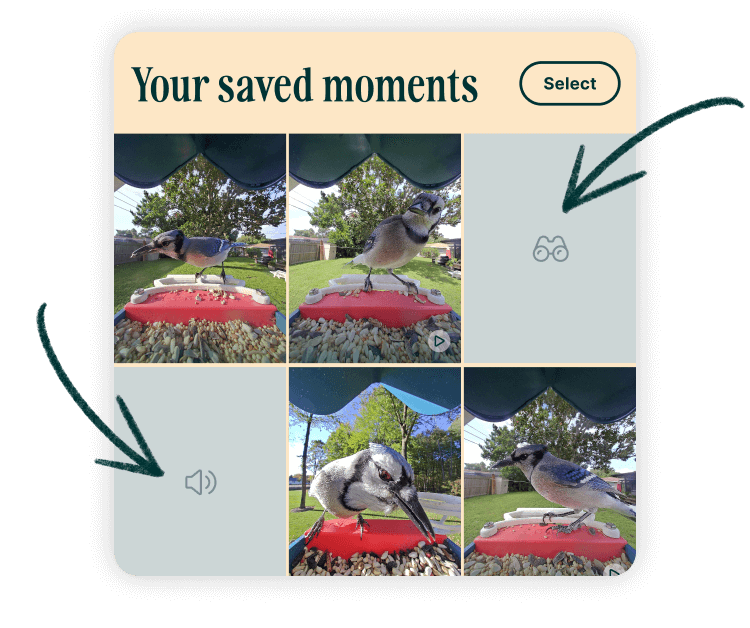
All sightings added will be saved to your Collection, just like postcards. Each will be tagged as Manually added, and if no image is attached (like with Sound ID), a simple placeholder image will appear in your Collection gallery. To remove a sighting, just delete that entry.